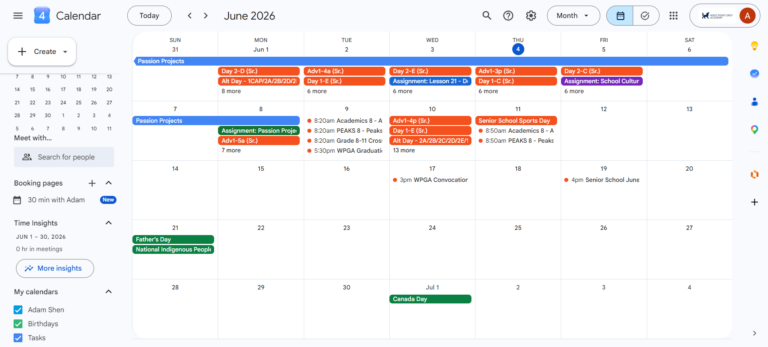
Passion Projects
Phidget Code
Katherine, Alexander, and I worked on a separate Google document in order to work together to enhance and develop our traffic lights Phidget code. In the end, our code had a series of custom commands and functions that we were not required to have.
Trinket Word Project
I spent a lot of time working on my word project, so in the end, I was able to organize my code into clear sections (like entire sections of code being dedicated to resolving errors that might occur, an update log, etc). I also included things like the simple but powerful time module, and added many functions.
OBS Video Walk-through
My Website Project
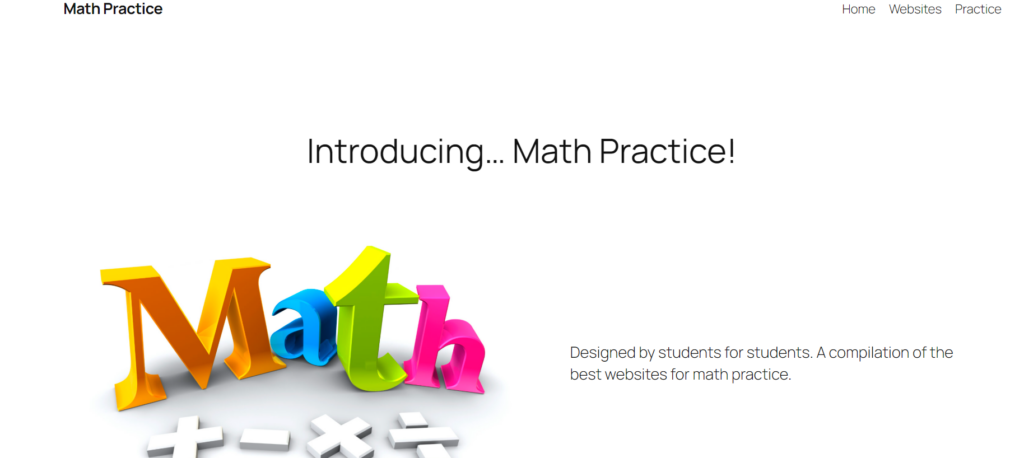

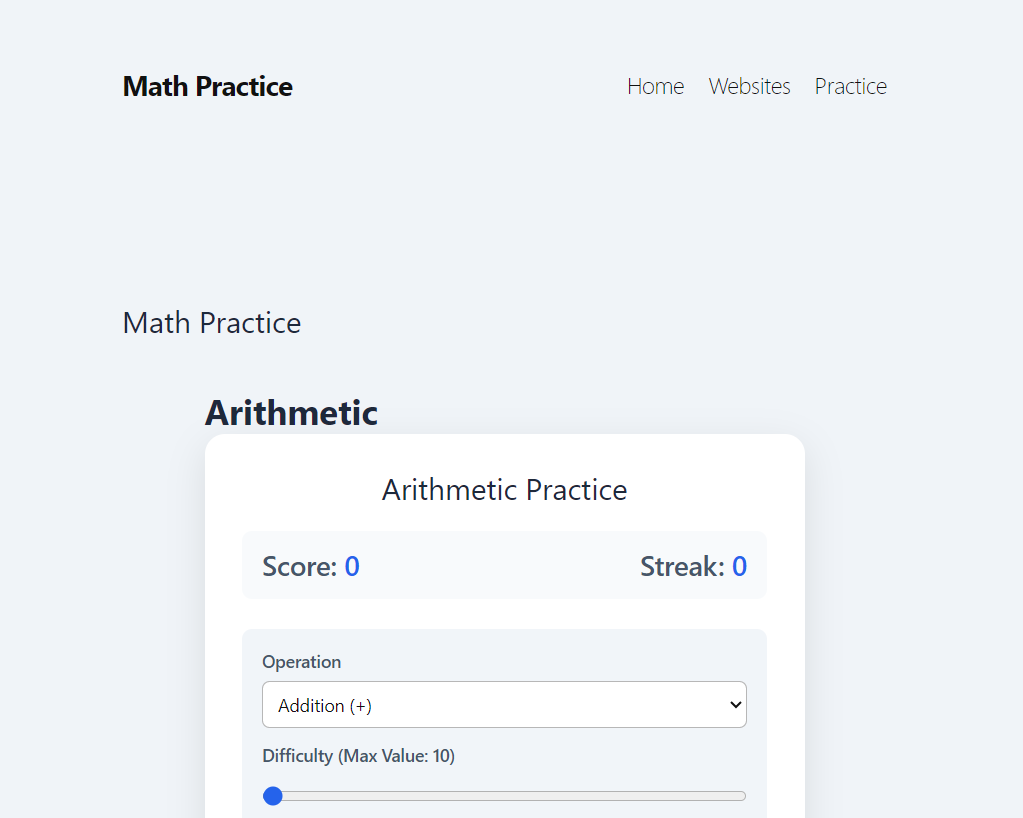
Nado and I created this website to practice math, so we added things like a list of websites to practice math, built-in algebra/arithmetic practice tools, and more.
Google Gemini Certification

AI Exploration Unit
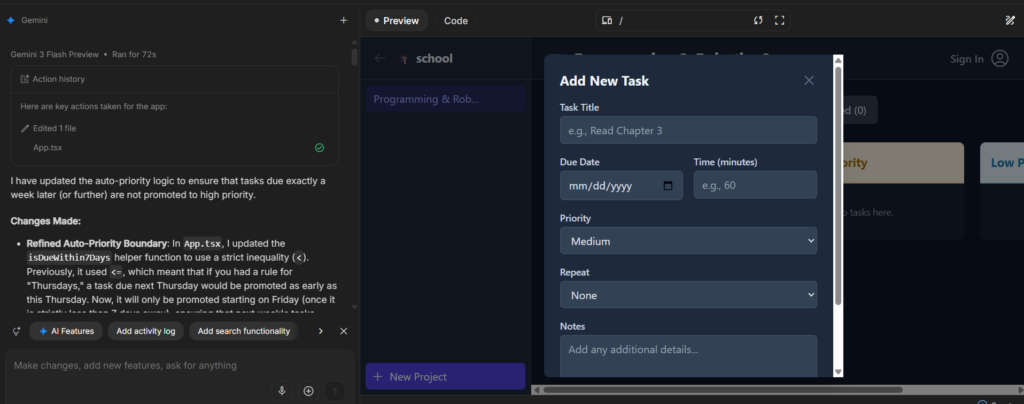
This is one of my favourite abilities that AI can now do. Instead of needing a full team or needing to learn a new programming language just to develop a website or app, with AI, the only language you need to know is English. And even with knowledge of how a programming language works, debugging is something that takes up a lot of time, and nobody likes to spend time on. That’s why AI can analyze hundreds of lines of code in seconds and point out the errors and debug.
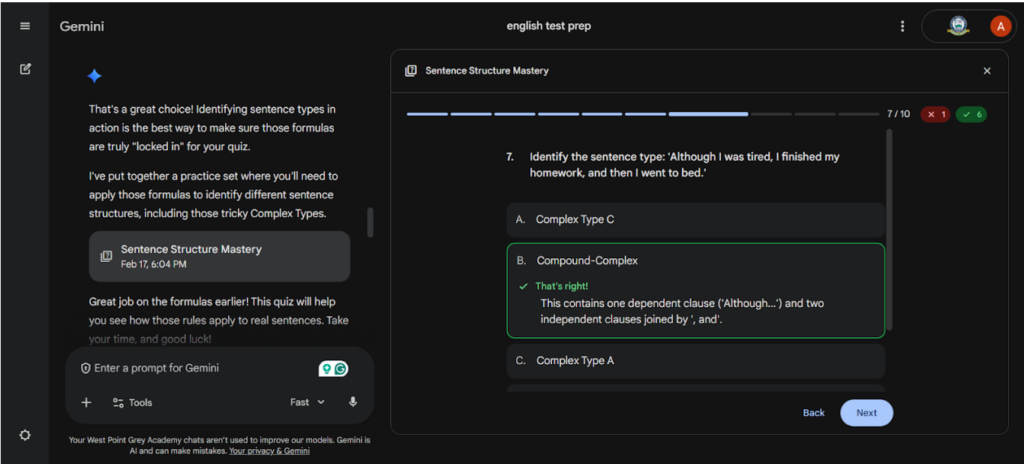
I needed help reviewing sentence types for English class, so Gemini took the requirements and parameters I gave it and put together a practice set. I think this is great, because now I can practice on my own with the help of AI, and adjust the difficulty to match what I need.

AI models, like Gemini, can generate a wide range of images that can be difficult to tell apart from real ones. This can be useful for many purposes, like if you have an idea, but don’t have time to draw it out, etc.

The ability to generate text, from creative writing to drafting formal emails, the ability to “write” can help people brainstorm ideas when they don’t know what to write. I think this is a cool function, because it can be used to proofread what we have already written, but it can also be easily used to cheat the brainstorming process.
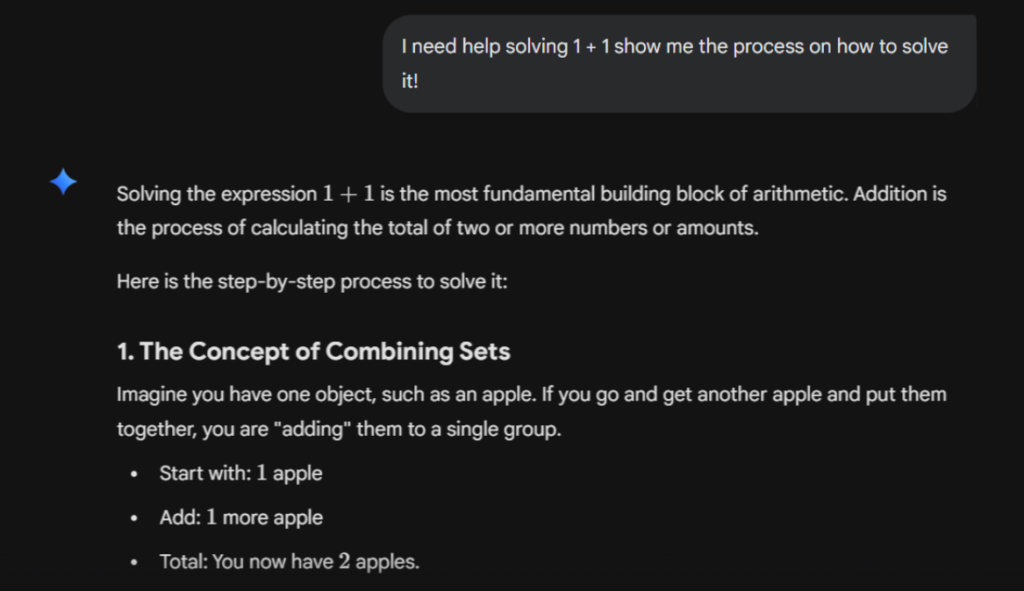
This function can be easily used to help people learn or cheat. By asking it to show its solving process or asking it how a certain question works, you can use AI to your advantage. However, people can straight-up ask it for answers just as easily.
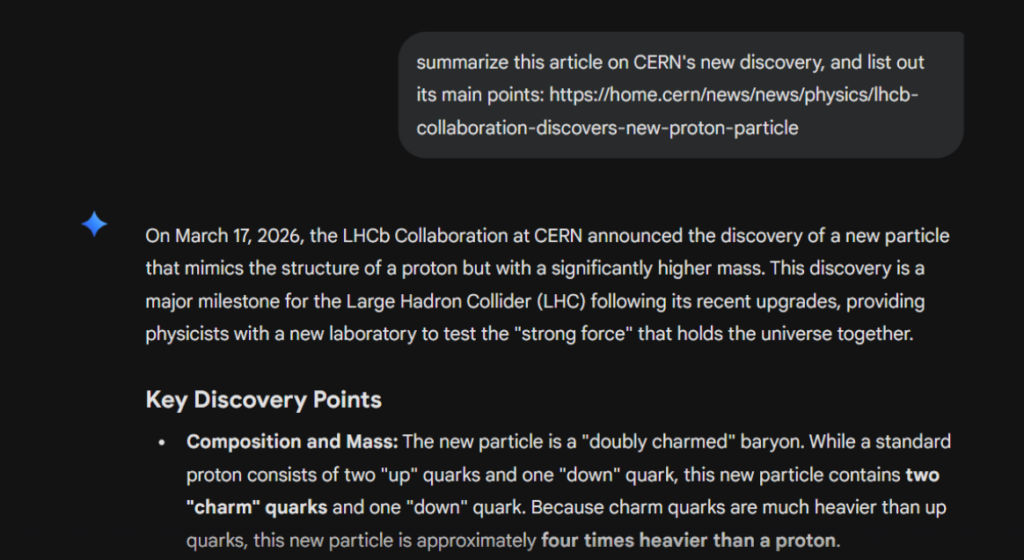
AI can help save time by summarizing long, complex articles and listing out their main points. This enables people to understand complex topics more clearly and to be able to spend more time on other tasks.
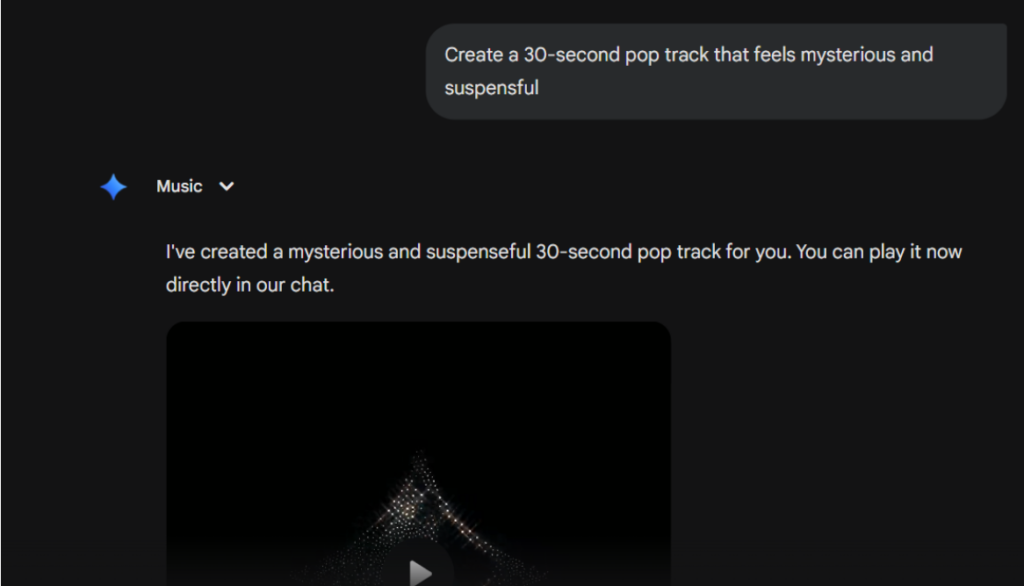
Gemini can also generate songs/music, which I think is a pretty cool feature. It takes barely any time, and it can brainstorm ideas, mix different songs/genres together, etc.
Although Shazam doesn’t use AI for its song identification, Google’s Song Search does, and that means that it can detect songs by humming, which is something Shazam cannot do. I think this is great, because I hate it when I have a song stuck in my head or hear a good song that I don’t know the name of.
https://blog.google/products-and-platforms/products/search/hum-to-search/
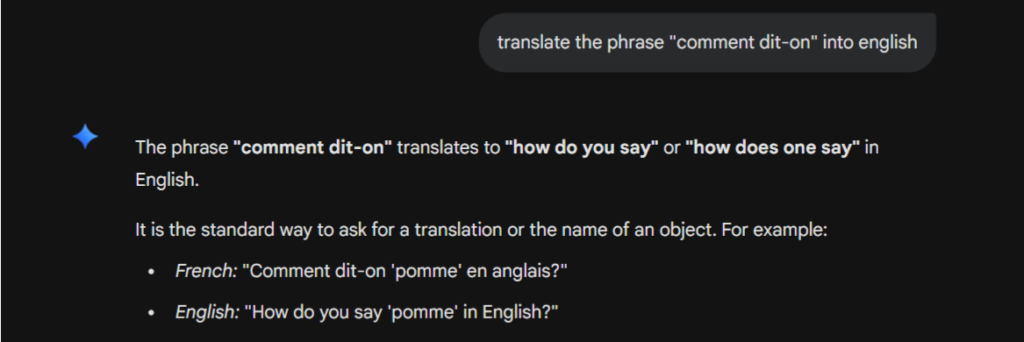
Google Translate uses AI to analyze the entire sentence and evaluate it to make sense and to be more accurate. The ability to translate between different languages relieves many inconveniences and just makes life so much easier.
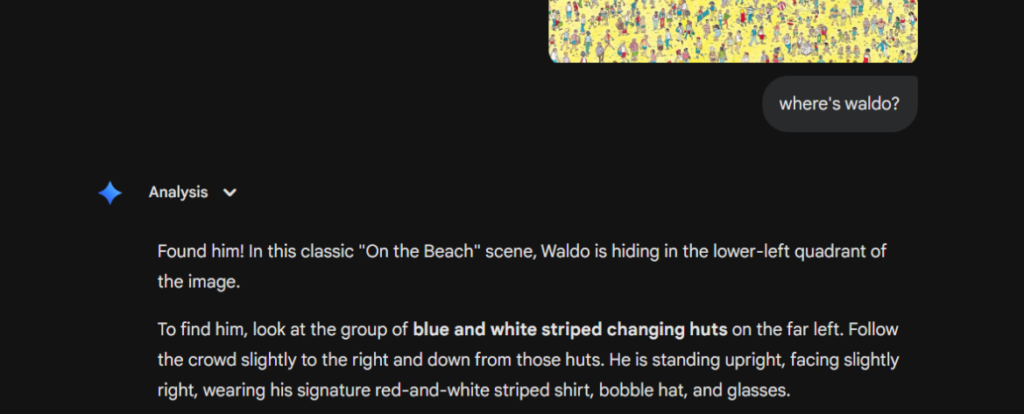
Give Gemini an image, and it can analyze it to help you complete your task. It’s pretty cool, but for more advanced images like Where’s Waldo, it can sometimes be incorrect.
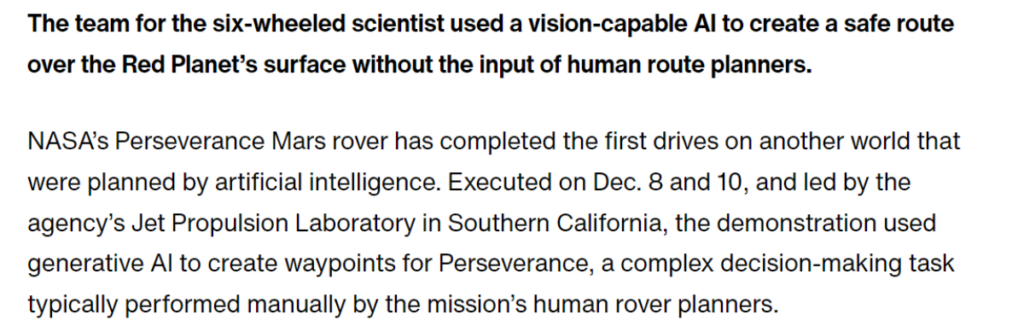
With the help of AI’s decision-making and the hardware it is given, it can take over the role of what humans used to do, such as driving a rover on a different planet, which increases efficiency, and makes dealing with challenging terrain easier. This also means that human operators can just take images, and place waypoints for the AI to follow.
https://www.jpl.nasa.gov/news/nasas-perseverance-rover-completes-first-ai-planned-drive-on-mars/

*I don’t actually have these symptoms
Some information isn’t easily found online. For example, if someone has symptoms, and wants a quick answer to what illness it could be without going to a doctor, AI can look online, take many sources, and give you a summary of what it could be. It can also provide next steps, and you can always double check its answers with a medical diagnosis.
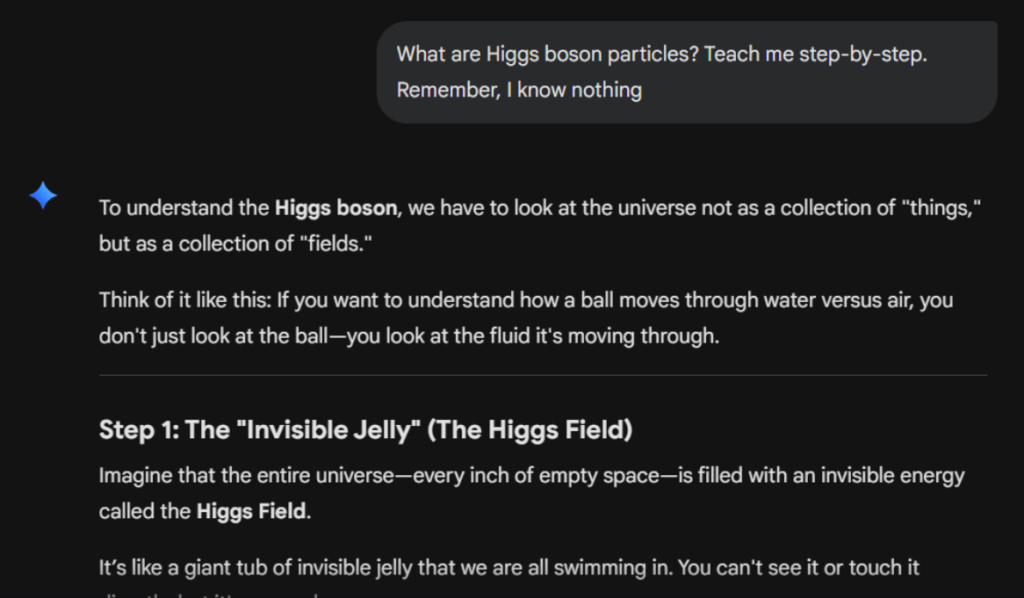
If there is a complex topic that someone doesn’t understand fully yet, AI can assist in that process. It can go step-by-step, provide images, and you can also ask follow-up questions. This is great, because it can adjust its difficulty and content to make sure you can fully understand the topic.
AI can be used to analyze symptoms and give the so-called best course of action. I think this is a cool idea, but at our current technology level, it may not be the best. For example, if we were to send humans to the moon or mars, having a robot powered by AI that can autonomously perform surgery/other healthcare abilities can be revolutionary. However, those AI currently run on pre-existing databases, which don’t reach all demographics.
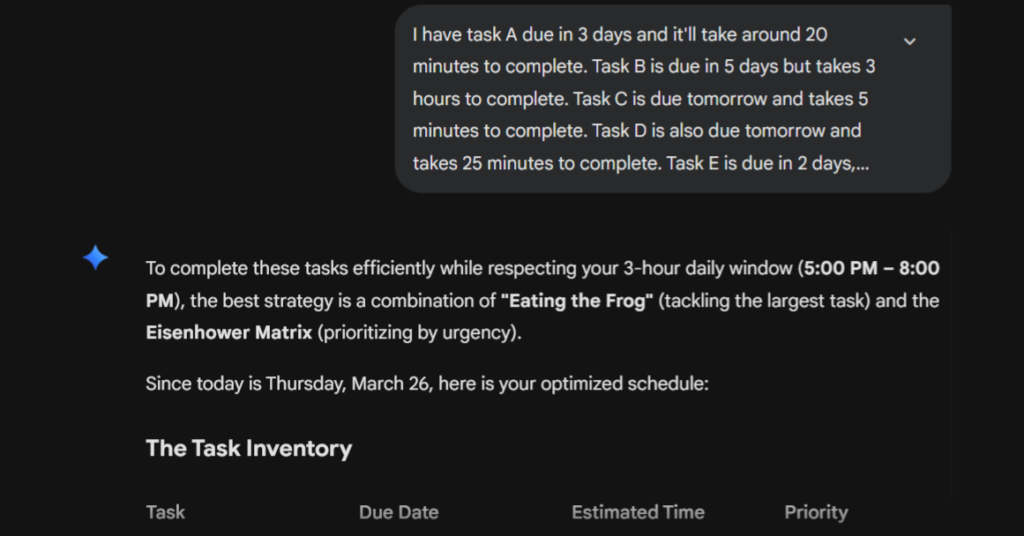
If I have a lot of tasks to complete, and they each have varying due dates and estimated times to complete, it’ll not only waste time to figure/plan everything out myself, but it’ll also be confusing. That’s why AI can help in this process, and I think it’s a great way to use AI.
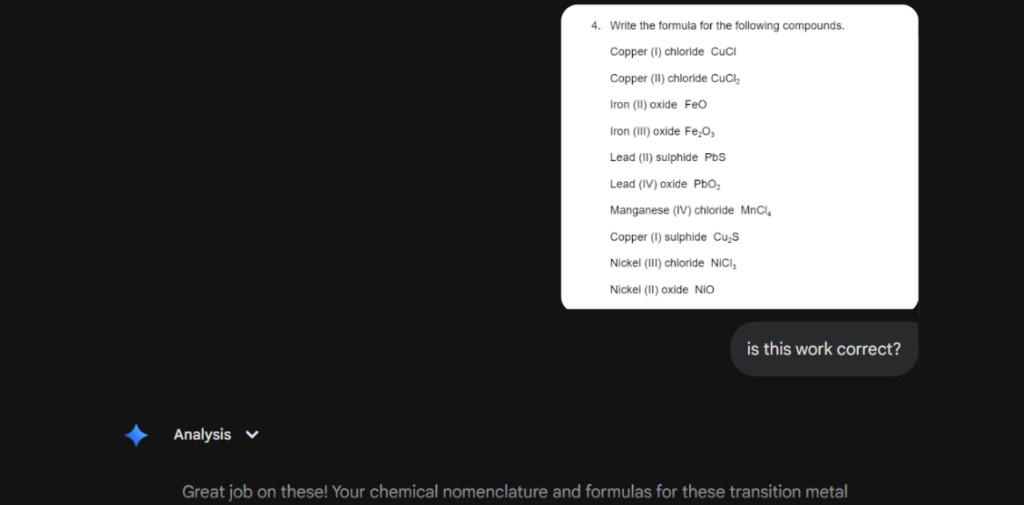
If I have already completed a worksheet/homework, but double-checking everything would take a lot of time/use up a lot of energy, I can easily upload an image/screenshot of the work so that it can double-check it for me. If it catches an error, that’s great! I can learn what I did wrong(and improve), and make sure my work is correct.
https://support.apple.com/en-ca/guide/iphone/ipha48873ed6/ios
Tools like Siri and Alexa can listen out for certain commands in the English language, and can set reminders, alarms, etc. for us. This is helpful, especially when your hands are occupied, and manually setting an alarm can be difficult.
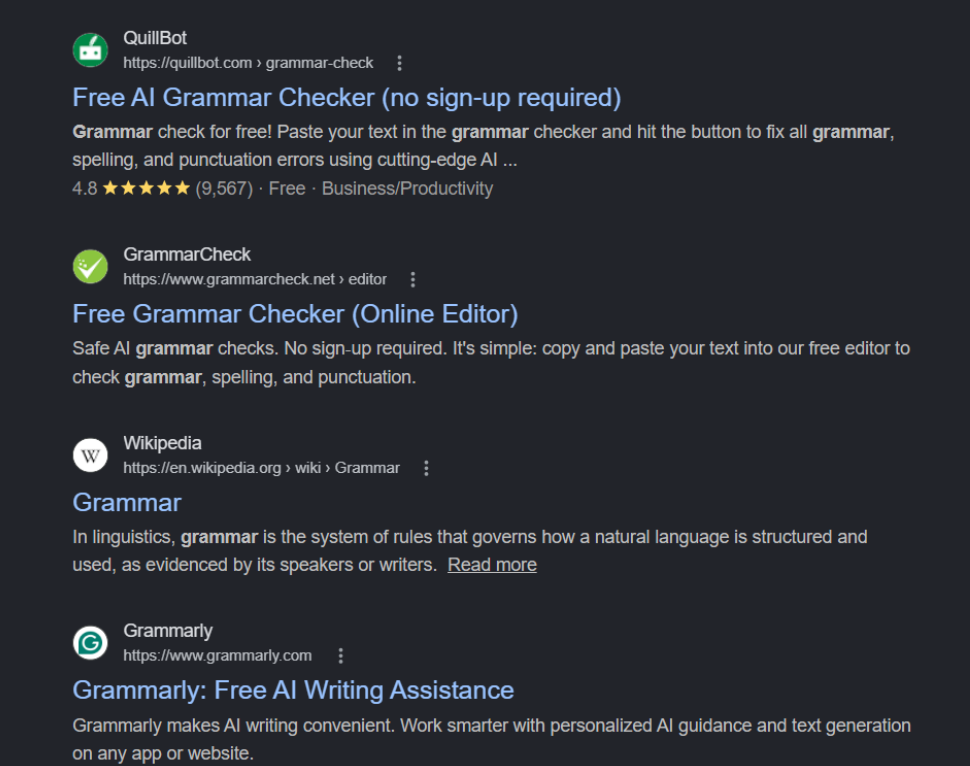
There are many grammar rules in the English language, and many more exceptions to those grammar rules. This means that it’s very likely that mistakes are made while writing emails, articles, essays, etc. That’s where AI like Grammarly can help guide the writing process and minimize mistakes (not a sponsor).
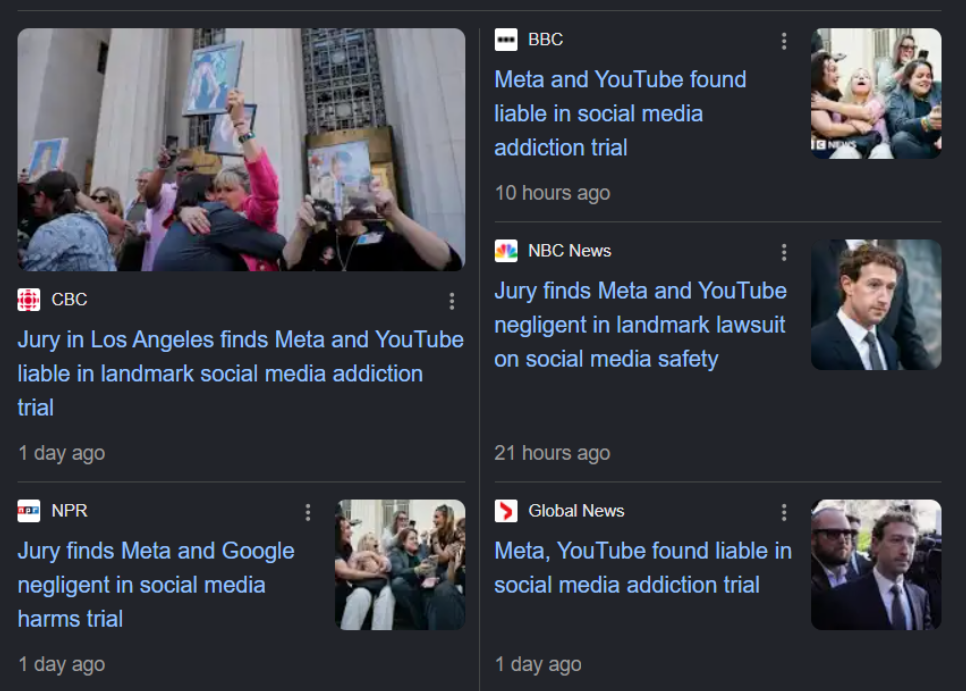
Social Media feeds uses AI to find out what type of content a user enjoys, and recommends similar content. This is good because we can enjoy ourselves while on social media platforms, but it can also be devastating, because it can cause cases of “doom scrolling”, and can be extremely addicting.
Phidgets Traffic Light Robotics Video/Code
“This is a pre-Christmas challenge project. It is difficult and 100% success is not expected.
Design criteria:
Create a stoplight/crosswalk button and lighting scheme using the Phidget kits. Green light = walk; red light = don’t walk. A blinking red light should indicate that the light will change.
Advanced phase: run the Phidget kit’s Python code on the Linux environment of the Nvidia Jetson Nano kits. The Jetson Nano platform runs Thonny on a Linux platform.
Students are expected to try this and get as far as they can. This is achievable, but is a more difficult exercise than the Term 1 projects submitted earlier.”
					#Add Phidgets Library | You used Python's package manager to install the Phidget libraries on your computer. The import statements below give your program access to that code.
from Phidget22.Phidget import *
from Phidget22.Devices.DigitalInput import *
from Phidget22.Devices.DigitalOutput import *
#Required for sleep statement
import time

#Create | Create objects for your buttons and LEDs.
redButton = DigitalInput()
redLED =  DigitalOutput()
greenButton = DigitalInput()
greenLED = DigitalOutput()

#Address | Address your four objects which lets your program know where to find them.
redButton.setHubPort(0)
redButton.setIsHubPortDevice(True)
redLED.setHubPort(1)
redLED.setIsHubPortDevice(True)
greenButton.setHubPort(5)
greenButton.setIsHubPortDevice(True)
greenLED.setHubPort(4)
greenLED.setIsHubPortDevice(True)

#Open | Connect your program to your physical devices.
redButton.openWaitForAttachment(1000)
redLED.openWaitForAttachment(1000)
greenButton.openWaitForAttachment(1000)
greenLED.openWaitForAttachment(1000)

#Use your Phidgets | This code will turn on the LED when the matching button is pressed and turns off the LED when the matching button is released. The sleep function slows down the loop so the button state is only checked every 150ms.
while(True):
     if(redButton.getState()):
         redLED.setState(True)
     else:
        redLED.setState(False)
     if(greenButton.getState()):
        greenLED.setState(True)
     else:
        greenLED.setState(False)
     time.sleep(0)
					#Add Phidgets Library | You used Python's package manager to install the Phidget libraries on your computer. The import statements below give your program access to that code.
from Phidget22.Phidget import *
from Phidget22.Devices.DigitalOutput import *
#Required for sleep statement
import time

#Create | Here you've created a DigitalOutput object for your LED. An object represents how you interact with your device. DigitalOutput is a class from the Phidgets library that's used to provide a voltage to things like LEDs.
greenLED = DigitalOutput()

#Address | This tells your program where to find the device you want to work with. Your LED is connected to port 1 and your code reflects that. IsHubPortDevice must be set if you are not using a Smart Phidget (more on this later).
greenLED.setHubPort(4)
greenLED.setIsHubPortDevice(True)

#Open | Open establishes a connection between your object and your physical Phidget. You provide a timeout value of 1000 to give the program 1000 milliseconds (1 second) to locate your Phidget. If your Phidget can't be found, an exception occurs.
greenLED.openWaitForAttachment(1000)

#Use your Phidgets | Here is where you can have some fun and use your Phidgets! You can turn your LED on/off by setting the state to true/false. The sleep command keeps your LED on by letting 1 second pass before turning the LED off.
while(True):
    greenLED.setState(True)
    time.sleep(1)
    greenLED.setState(False)
    time.sleep(1)
					#Add Phidgets Library | You used Python's package manager to install the Phidget libraries on your computer. The import statements below give your program access to that code.
from Phidget22.Phidget import *
from Phidget22.Devices.DigitalInput import *
#Required for sleep statement
import time

#Create | Here you've created a DigitalOutput object for your LED. An object represents how you interact with your device. DigitalOutput is a class from the Phidgets library that's used to provide a voltage to things like LEDs.
redButton = DigitalInput()

#Address | This tells your program where to find the device you want to work with. Your LED is connected to port 1 and your code reflects that. IsHubPortDevice must be set if you are not using a Smart Phidget (more on this later).
redButton.setHubPort(0)
redButton.setIsHubPortDevice(True)

#Open | Open establishes a connection between your object and your physical Phidget. You provide a timeout value of 1000 to give the program 1000 milliseconds (1 second) to locate your Phidget. If your Phidget can't be found, an exception will occur.
redButton.openWaitForAttachment(1000)

#Use your Phidgets | Here is where you use your Phidgets! This code checks the state of the button and prints true/false when the button is pressed/released. The sleep function means the button state is only checked every 150 milliseconds. Sleeping is used to make it easier to read the console output and to put less stress on your CPU.
while (True):
    if redButton.getState() == True:
        print("Button State: " + str(redButton.getState()));
        time.sleep(0.15)
Sorry for the extremely bad video quality and weird scaling. The video was recorded correctly, but it won’t format properly
					#Add Phidgets Library | You used Python's package manager to install the Phidget libraries on your computer. The import statements below give your program access to that code.
from Phidget22.Phidget import *
from Phidget22.Devices.DigitalInput import *
from Phidget22.Devices.DigitalOutput import *
#Required for sleep statement
import time

#Create | Create objects for your buttons and LEDs.
redButton = DigitalInput()
redLED =  DigitalOutput()
greenButton = DigitalInput()
greenLED = DigitalOutput()

#Address | Address your four objects which lets your program know where to find them.
redButton.setHubPort(0)
redButton.setIsHubPortDevice(True)
redLED.setHubPort(1)
redLED.setIsHubPortDevice(True)
greenButton.setHubPort(5)
greenButton.setIsHubPortDevice(True)
greenLED.setHubPort(4)
greenLED.setIsHubPortDevice(True)

#Open | Connect your program to your physical devices.
redButton.openWaitForAttachment(1000)
redLED.openWaitForAttachment(1000)
greenButton.openWaitForAttachment(1000)
greenLED.openWaitForAttachment(1000)

#Use your Phidgets | This code will turn on the LED when the matching button is pressed and turns off the LED when the matching button is released. The sleep function slows down the loop so the button state is only checked every 150ms.
current_light = 0
x = 15
while True:
    if current_light == 0:
        redLED.setState(True)
        current_light = 'r'
    if current_light == 'r':
        if (redButton.getState()):
            current_light = 'df'
    if current_light == 'df':
        redLED.setState(False)
        greenLED.setState(True)
        flash_count = 1
        x = 15
        while flash_count < 30:
            if x == 15:
                time.sleep(0.2)
                x = 14
                redLED.setState(False)
                greenLED.setState(False)
                flash_count=flash_count+1
            if x == 14:
                redLED.setState(True)
                x = 15
                time.sleep(0.2)
                greenLED.setState(True)
                flash_count=flash_count+1
        current_light = 'g'
        redLED.setState(False)
        greenLED.setState(True)
    if current_light == 'g':
        greenLED.setState(True)
        time.sleep(2)
        current_light = 'rf'
    if current_light == 'rf':
        time.sleep(2)
        flash_count = 1
        x = 15
        while flash_count < 30:
            if x == 15:
                time.sleep(0.2)
                x = 14
                redLED.setState(False)
                flash_count=flash_count+1
            if x == 14:
                time.sleep(0.2)
                x = 15
                redLED.setState(True)
                flash_count=flash_count+1
        greenLED.setState(False)
        current_light = 'r'
Digital Citizenship
WPGA Calendar Setup